Animate CSV Columns
A wide CSV table can hide the relationship between fields. Animate CSV Columns reveals each column in sequence, so you can explain the structure before using the data in JSON or HTML.
How Animate CSV Columns works
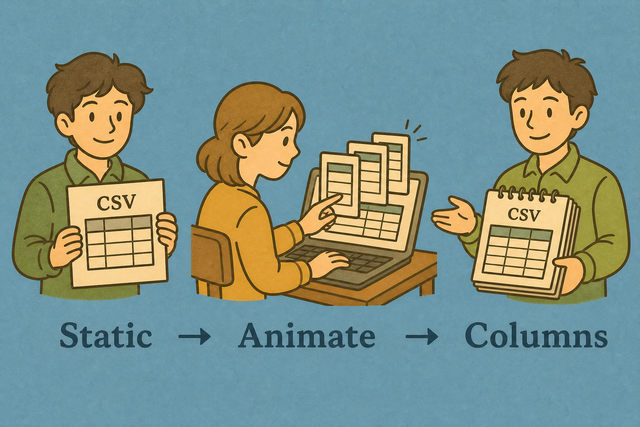
1. Add CSV data
2. Review the column animation
3. Copy or download the CSV
Supported format
Add CSV data
You can paste CSV, upload a file, or use the example
Parsing status
No CSV data to parse
You can paste CSV, upload a file, or use the example
Animated CSV preview
Reveal CSV columns in sequence so wide table structure is easier to review and explain.
How to review an animated CSV
A wide CSV can make field order hard to discuss. For example, a table with customer, order, and status columns is easier to explain when each column appears in sequence. Animate CSV runs in your browser, so the preview gives you a clear way to review the structure before you share or reuse the CSV.
- You can add your data Paste CSV or upload a file. Local processing keeps the source data in this browser while you review it.
- You can match the format Set the value separator and header option to match the source. This keeps fields in the intended columns.
- You can review the result Watch the preview, then copy or download the CSV. A final review helps catch a wrong separator or header row before reuse.
How CSV structure works
What is CSV?
CSV (comma-separated values) is a plain text table with one row per line and fields separated by a chosen character. A file such as Name,Age,City followed by Ada,36,London works because the separator defines the columns without formulas or styling.
CSV preview example
Input CSV
Name,Age,City
Ada,36,London
Lin,29,Taipei
Preview CSV
Name,Age,City
Ada,36,London
Lin,29,Taipei
Common CSV issues
Will leading zeros disappear?
A value such as "00123" can lose its leading zeros after another program opens the CSV. Quoting the field preserves the text during parsing, and setting the destination column to Text helps preserve it after import.
Why is everything in one column?
The file may use semicolons or tabs instead of commas. The matching Value separator places each field in its intended column because the parser then reads the source format correctly. The related delimiter tool can also help when the source format needs a broader change.
What about UTF 8 and Windows 1252?
Accented characters can look wrong when the source uses Windows 1252 and the text is read as UTF 8. UTF 8 is the safer choice for shared CSV data because it represents a broad range of characters consistently.
Animate CSV Columns FAQ
Does Animate CSV upload my file?
No. The CSV is parsed in this browser, and the preview stays on your device. This helps keep the source data close to you while you review the table.
For example, a customer list can be previewed without sending its rows to a remote service. The page still needs its HTML, CSS, JavaScript, and image files to load, but the CSV content is handled here.
What does the animation show?
The preview reveals the table one column at a time. A wide file such as Name,Age,City becomes easier to discuss because you can focus on each field and its values in sequence.
This view helps you check column order and explain how the fields relate. The animation is a visual preview, while the underlying CSV remains the data you can copy or download.
Can I stop the animation?
The animation resets when you convert the data again or reload the page. This gives you a fresh preview after you change the CSV, separator, or header setting.
The page does not provide a separate pause control. Reprocessing is the practical way to return the preview to its starting state because the animation is tied to the current conversion.
How does Animate CSV Columns work?
The tool parses the CSV, identifies the rows and columns, and reveals the columns in sequence. For example, a table with customer, order, and status fields appears progressively instead of requiring you to scan the full width at once.
The value separator and header setting affect how the table is read. Matching those options to the source matters because a wrong separator can put several fields into one column.
Can I export the animation as a video?
No. The animation is a live preview, not a video file. You can copy the CSV or download the underlying file when you need a static result.
The preview explains table structure, while the downloaded CSV preserves the data for another tool. Keeping those roles separate avoids treating a visual review as a media export.
Does animation run on mobile?
Yes. The preview can run on a mobile browser, and the columns cycle in the preview pane. A smaller screen may show less of a wide table at once, so the sequential view can make field order easier to follow.
The same CSV input, separator, and header options apply on mobile. Reprocessing the data resets the animation when you need to review it again.