CSV Syntax Highlighter
Plain CSV can hide a quoted comma or an unexpected number. For example, a name such as "Doe, Jane" should stay in one field, so a colored CSV preview helps you check the structure before another tool reads it.
How color highlighting works
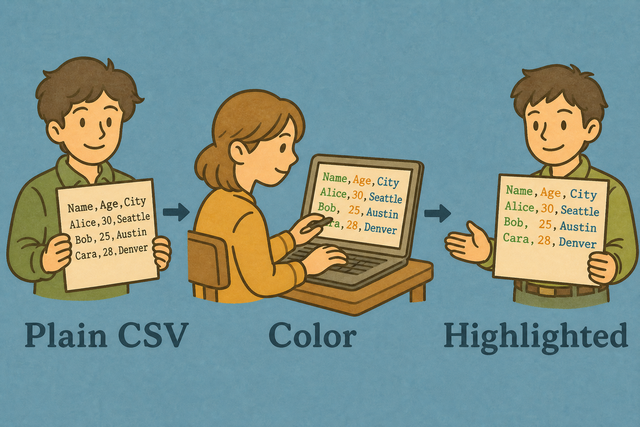
1. Add CSV data
2. Review the colored preview
3. Copy or download the result
Supported Formats
Add CSV data
You can paste CSV text, upload a file, or view an example
Parsing status
No CSV data to review
You can paste CSV text, upload a file, or view an example
Colored CSV preview
Colors separate CSV values, quoted text, and commas so the table is easier to inspect.
How to use the CSV syntax highlighter
A plain CSV file can make field boundaries hard to check. For example, a quoted value such as "Doe, Jane" contains a comma but still represents one field. This CSV syntax highlighter colors the text in your browser, so you can review the structure before you reuse the CSV in a spreadsheet, database, or README.
- You can add your data. Paste CSV text or upload a file. Local processing keeps the source available only in this browser.
- You can set the separator. Choose comma, semicolon, tab, or pipe when the file uses a different field boundary. The preview then reflects the file structure.
- You can review and save. Check the colors, then copy the plain CSV or download it. The color is a reading aid, not part of the file.
What CSV is
What is CSV?
CSV (comma-separated values) stores one row per line and separates fields with a chosen character. For example, Name,Age,City uses commas between three fields. Select the matching separator when a file uses semicolons, tabs, or pipes, because the parser can then identify each column correctly.
Sample input and output
Sample input
Name,Age,City
Ada,36,London
Lin,29,Taipei
Sample output
Name,Age,City
Ada,36,London
Lin,29,Taipei
Common CSV review problems
Can CSV keep leading zeros?
A value such as "00123" can lose its leading zeros after a spreadsheet opens it as a number. Quoting the field keeps the zeros in the CSV text, and this tool does not remove them while it parses the file. The receiving spreadsheet may still need the column set to Text.
Why is every value in one column?
The file is probably semicolon- or tab-separated. Change Field separator to match, or use Change CSV Delimiter.
Why do some characters look wrong?
Accented characters can look wrong when a file uses Windows-1252 but the text is read as UTF-8. A UTF-8 copy usually preserves names and symbols across tools, so the source file can be exported again with that encoding before you review it.
CSV syntax highlighter FAQ
Does Add Color to CSV upload my file?
No. The colors are applied in your browser, and this page does not upload your CSV. For example, a customer list stays on your device while you review quoted fields and separators.
The page needs no account or spreadsheet program. Local processing keeps the source data available only to your browser, which supports a more private review.
What gets highlighted?
The preview colors quoted strings, numbers, and commas. For example, a quoted name and its comma stand apart from the surrounding fields, which makes the row easier to inspect.
The colors help you read the CSV but do not change its text. A matching field separator still matters because highlighting cannot repair a file that uses the wrong delimiter.
Can I copy the highlighted CSV?
Yes. Copying returns plain CSV text, while the colors remain part of the on screen preview. For example, a row with a quoted comma copies with its original quotes and separator.
This keeps the result compatible with tools that accept CSV. The preview is for review, so the downloaded file contains data rather than formatting.
What does CSV syntax highlighting show?
CSV syntax highlighting colors quoted strings, numbers, and commas. For example, mismatched quotes or an unexpected delimiter can stand out before the CSV reaches another tool.
The preview is a visual check, not a data conversion. You can compare the row structure, confirm the separator, and then copy or download the unchanged CSV text.
Can I print the highlighted CSV?
You can print the preview from your browser, but the downloaded and copied result remains plain CSV. For example, printed colors can support a quick visual review, while the file remains suitable for later import.
You can use the plain CSV for data exchange because color is a display aid. A printed preview can show structure, but it should not replace checking the actual text.
Does highlighting change the file?
No. Highlighting changes only how the CSV appears in the preview. For example, a number, quote, or comma receives a color while its underlying character stays the same.
Copying and downloading preserve plain CSV text. This separation lets you inspect the data without adding formatting that another CSV reader may not understand.