Anonymize CSV Data
A CSV export can contain names, email addresses, and cities that should not appear in a shared sample. Anonymize CSV fields in your browser, then keep the useful rows and columns without exposing the original personal details.
How Anonymizing CSV Works
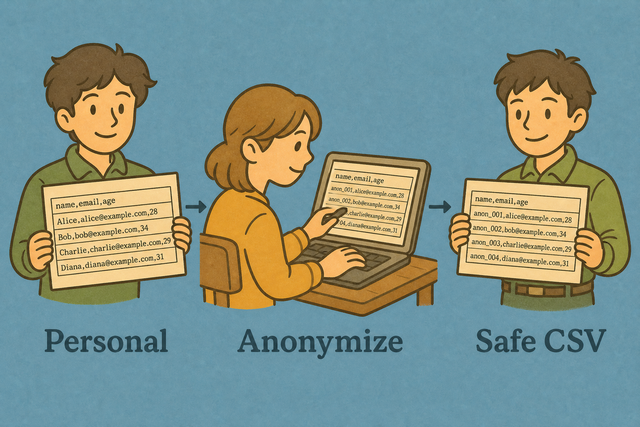
1. Import CSV data
2. Anonymize the matching fields
3. Copy or download the result
Supported format
Import CSV data
You can paste CSV data, upload a file, or use the example
Parsing Status
No data to parse
You can paste CSV data, upload a file, or use the example
Anonymized CSV output
The output replaces selected personal fields while keeping the CSV structure.
How to anonymize CSV data
A CSV sample can expose real names or contact details even when the surrounding data looks harmless. For example, a customer export may include Name, Email, and City columns that a test system does not need. Anonymize CSV runs locally, so the output stays in CSV form for a script, database import, or documentation sample.
- You can import your data. Paste CSV or upload a file. The conversion runs in this browser, which keeps the source file on your device.
- You can set the parsing options. Choose the separator and confirm the header setting so each field stays in the correct column.
- You can review and export CSV. Check the output, then copy or download it so you can confirm the masked fields before sharing the file.
About CSV data
What is CSV?
CSV is a plain-text table with one row per line and fields separated by commas, semicolons, tabs, or pipes. A file such as Name,Email on one line and Ada,[email protected] on the next is easy for scripts and data tools to read because it stores values rather than formulas or styling.
Sample anonymized CSV
Example input
Name,Age,City
Ada,36,London
Lin,29,Taipei
Example output
Name,Age,City
Ada,36,London
Lin,29,Taipei
Common problems
Will leading zeros disappear?
A value such as "00123" can lose its leading zeros when another program interprets it as a number. Quoting the field keeps the zeros in the CSV, and this tool does not remove them while it parses the file.
Why is everything in one column?
A file that uses semicolons or tabs can appear as one column when it is read with a comma separator. Set Value Separator to the character used between fields so the parser can place each value in its intended column.
What about UTF-8 text?
Accented characters can look wrong when the source file uses a different encoding from the parser. UTF-8 is the clearest choice for shared CSV files because it represents a broad range of characters consistently.
Anonymize CSV FAQ
Does Anonymize CSV upload my file?
No. The tool replaces matching fields in your browser, so the CSV stays on your device while you work. This suits a sample such as Name,Email
Ada,[email protected], where the personal values need masking before sharing.
Which columns are anonymized?
The tool checks headers that resemble name, email, city, address, or phone fields. Review the output because a personal value in an unusual column name may need separate handling.
Is this GDPR-proof anonymization?
No. This is a quick mask for samples, not a legal or compliance determination. A file can still identify someone through dates, locations, IDs, or combinations of columns, so review the remaining data before sharing.
Which columns get hashed?
Name-like and email-like headers receive replacement tokens, while numeric IDs remain unless the tool identifies them as personal data. Check the output against your schema because header-based matching cannot understand every custom field name.
Can I share an anonymized CSV with a vendor?
You can share it only after reviewing every remaining column and confirming that the recipient accepts the masking method. The output removes selected original values, but it does not certify deletion or remove indirect identifiers.
Does anonymization stay the same if I re-run it?
Tokens are generated during the current session. A second run can produce different placeholders, so keep one reviewed export when you need to compare or share the same sample again.