Filter CSV Rows
A large CSV can contain many records that do not belong in your next report. For example, a customer export may include every city, while your task needs rows for London only. Filter CSV Rows keeps records that match your pattern, so the output is easier to review and pass to another tool.
How Filter CSV Rows Works
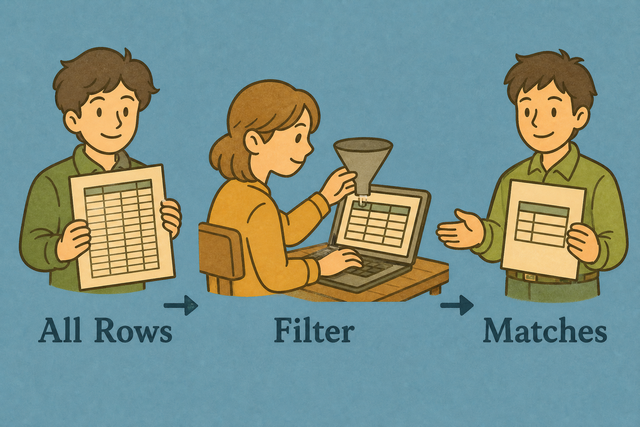
1. Import data
2. Filter matching rows
3. Copy or download the result
Supported Formats
Import CSV Data
You can paste CSV text, upload a file, or view an example
Parsing Status
No data to parse
You can paste CSV text, upload a file, or view an example
Filtered CSV Output
Matching rows appear here as CSV text. You can copy or download the result.
How to use Filter CSV Rows
A CSV file may contain hundreds of rows when you need only a small set. For example, a directory export can include many cities, while a local contact list needs rows for one city. Filter CSV Rows compares the pattern with your data in the browser, so the output keeps the original CSV shape while removing nonmatching rows.
- You can import your data. Paste CSV text or upload a file. Local processing keeps the source available in the page while the filter runs.
- You can set the separator and header option. Select comma, semicolon, tab, or pipe to match the file. The correct setting matters because it determines how each row is split into fields.
- You can choose a pattern and review the output. A city such as Chicago or a name such as Ada gives a clear test case. Review the matching rows before copying or downloading because this confirms that the pattern and separator fit the data.
How CSV data is structured
What is CSV?
CSV is a plain text table with one row per line and fields separated by a chosen delimiter. For example, Name,Age,City places three values in three columns. CSV has no formulas or styling, so the separator and quoting determine how another program reads each field.
Sample input and output
A pattern is useful when a file contains several locations but a report needs one. In this example, the pattern is London, so the output keeps the matching row and the header.
Example input
Name,Age,City
Ada,36,London
Lin,29,Taipei
Example output
Name,Age,City
Ada,36,London
Common CSV filtering problems
Will leading zeros disappear?
A ZIP code such as "00123" can lose its first zeros in a spreadsheet program if the field is treated as a number. Quoting the value keeps the zeros in the CSV, and this tool does not remove them while filtering. Check the downloaded file because another program may apply its own type rules.
Why is everything in one column?
A file with semicolons or tabs can appear as one field when it is read as comma separated. For example, City;Sales;Date needs the Semicolon option. Matching Value Separator to the source lets the parser split columns correctly.
What about UTF 8 and Windows 1252?
Text such as café or Łódź can look wrong when the source encoding differs from the encoding used for the paste. UTF 8 is a practical choice for shared CSV data because it supports many characters. If text is already damaged, the source file needs to be exported again with the correct encoding.
Filter CSV Rows FAQ
Does Filter CSV Cells upload my file?
No. The matching rows stay on your device while Filter CSV Rows runs in your browser. For example, a customer CSV can be filtered without sending its names or locations to a server.
The page processes the pasted or selected CSV locally, so you can review the result before you copy or download it. This matters when the file contains personal or business data.
Does the pattern support regex?
Yes. The pattern supports regular expressions, and an invalid expression falls back to a case insensitive text match. For example, a pattern such as ^A matches values that begin with A when the expression is valid.
A simple word or city name works for ordinary filtering. A valid regular expression helps when the match has a repeatable structure, while the fallback still gives you a text result when the expression is not valid.
Can I filter CSV by city or name?
Yes. Enter the city or name in Match pattern, then review the rows that contain that value. For example, Chicago keeps rows where the selected text includes Chicago.
The filter checks the row data rather than changing the source file. This keeps the original columns while reducing the result to records that are relevant to your task.
How does Filter CSV match rows?
The tool keeps rows that contain the pattern in the selected data. Matching is a case sensitive substring check unless the pattern is a valid regular expression or the browser logic applies its fallback.
For example, the pattern York can match New York because the text contains York. A specific pattern gives a smaller result, which makes the output easier to verify.
Can I filter CSV by multiple values?
You can run the filter more than once, or use a distinctive pattern that covers the values you need. For example, a first pass for London can be followed by another pass for a narrower name or code.
Sequential filtering works because each result remains CSV data that can be used as the next input. Review each result before continuing, since a narrow pattern can remove rows that a later step would need.
Does filtering happen on the server?
No. Filtering happens locally in your browser, and the spreadsheet stays on your device. For example, a CSV with customer addresses is parsed in the page rather than sent to a server.
Local processing keeps the data under your control while you test the separator, pattern, and header setting. The browser still needs the page files to load, but the CSV content is handled on the device.