Extract CSV Columns
A CSV export can include fields that the next system does not use. For example, a contact table may contain Name, Email, City, and Notes, while an import needs only Name and Email. Select the required headers here and keep the output focused, because a smaller table is easier to check and less likely to expose unrelated data.
How CSV column extraction works
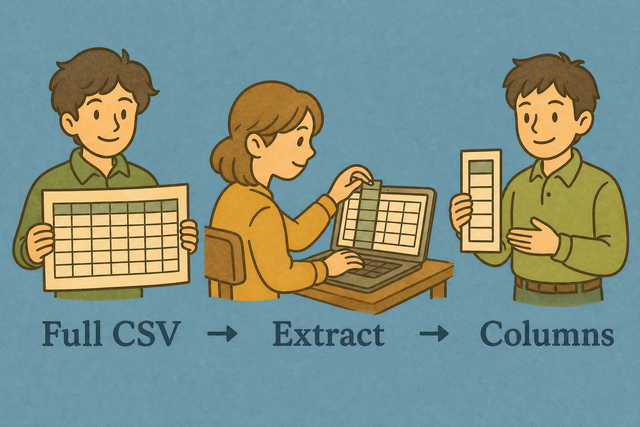
1. Add CSV data
2. Select columns and preview
3. Copy or download the CSV
Supported Formats
Add CSV data
You can add text, choose a file, or load the example
Parsing status
You can add CSV data to see the parsing status
You can add text, choose a file, or load the example
Selected CSV columns
A focused CSV keeps only the headers you choose.
How to extract CSV columns
A source CSV can contain fields that a report or import does not need. For example, a customer export may include internal notes beside the Name and Email fields required by a mailing list. This browser tool keeps the chosen columns and writes a new CSV, which reduces manual deletion and makes the result easier to review.
- You can add your data. Paste CSV or choose a file. The browser reads the text here, so the source stays available for local processing.
- You can choose headers. Enter names such as Name,Email and set the separator that matches the source. Matching the separator prevents values from shifting into the wrong fields.
- You can review and export. Check the preview, then copy or download the CSV. A quick review catches spelling differences in headers before another system receives the file.
CSV column extraction in practice
What CSV contains
CSV is a plain text table with one record per line and fields separated by a chosen character. A file such as Name,Age,City followed by Ada,36,London is easy to read, but a different separator can make every value appear in one field. The separator setting must match the source so each column remains in the correct position.
Sample input and output
Example input
Name,Age,City
Ada,36,London
Lin,29,Taipei
Example output
Name,Age,City
Ada,36,London
Lin,29,Taipei
Common CSV column problems
Will leading zeros disappear?
A value such as "00123" can lose its leading zeros after another program opens the file. Keep the value quoted when the source uses quotes, then check the downloaded CSV as text because this tool does not remove those zeros during extraction.
Why is everything in one column?
The file is probably semicolon- or tab-separated. Change Field separator to match, or use Change CSV Delimiter.
What about text encoding?
Accented text can look damaged when the source and the reader use different encodings. UTF 8 is a practical choice for shared CSV files because it represents a wide range of characters, so save or paste the source as UTF 8 when the source supports that option.
CSV column extraction FAQ
Does Extract CSV Column upload my file?
No. This page reads and extracts columns in your browser. For example, a local file with Name,Email,City can produce a new CSV with only Name and Email, without sending the source to a server.
The page does not require an account or a separate spreadsheet program. The browser handles the CSV text here, so you can review the output before saving it. This approach keeps the data path clear and supports privacy because the source remains on your device during extraction.
How do I choose columns?
You can enter header names such as `Name,City` in the Columns field. For example, a table with Name, Email, and City returns only the headers you list, in the order you list them.
The header text must match the source row, including spelling and spaces. Set Field separator to the character used by the file, because correct parsing lets the tool identify each requested column and keep its values aligned.
Can I extract one CSV column?
Yes. Enter one header, such as `Email`, and the result contains that header and its values. A one column CSV works well when another process needs only one field.
The source still needs a correctly parsed header row. Keep The first row contains headers selected when the first line names the fields, because the tool uses those names to locate the column.
How do I extract one CSV column?
You can enter one header in the Columns field, or list several headers separated by commas. For example, `Name,Email` keeps those two fields in that order.
The tool matches the names in the first row, so spelling and separator settings affect the result. Review the preview before downloading because it shows whether the selected fields and values line up.
What if the header is missing?
The tool selects columns by header text, so a missing header cannot be matched by name. For example, a data row such as Ada,36,London has no reliable header for a request such as `City`.
You can add a header row or use a source with named fields before extracting. Keep The first row contains headers selected only when the first row contains names, because treating ordinary data as headers removes that row from the selection.
Can I extract CSV columns without spreadsheet software?
Yes. CSV column extraction runs in your browser and produces a CSV file. For example, you can paste a plain text table, select Email, and download the result without opening a spreadsheet application.
CSV stores values and separators rather than workbook features such as formulas, styling, or multiple sheets. This page fits a single table, so the downloaded file is suitable when the next process accepts CSV.