XLS to CSV Converter
A spreadsheet workbook can contain several sheets, formulas, and formatting. This converter turns pasted cells or supported workbook XML into one CSV table, which helps a database or script read the values.
How XLS to CSV Works
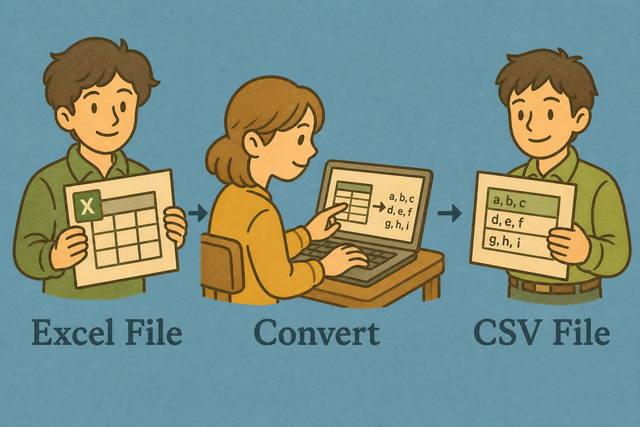
1. Add spreadsheet data
2. Convert to CSV
3. Copy or download the result
Supported Formats
Import XLS workbook Data
You can paste cells, upload supported data, or view an example
Parsing Status
No data to parse
You can paste cells, upload supported data, or view an example
CSV Output
The result is a plain text CSV table with the selected separator.
How to convert spreadsheet data to CSV
A workbook with several sheets does not fit a simple import, while a CSV file represents one table. For example, a customer sheet can become Name,Email,Country rows for a database or script. This converter runs in your browser and keeps the workflow focused on values, so the output is easier for the next system to read.
- You can paste the sheet. Copied cells and supported spreadsheet XML provide the table values. Binary .xlsx files are not decoded here, so pasted values avoid a partial import.
- Pick a delimiter. Comma fits standard CSV, while semicolon often fits regional spreadsheet settings. Matching the source separator keeps each field in the correct column.
- Save as CSV. Download data.csv after checking the preview. The converter exports cell text rather than calculating formulas, so the file reflects the supplied values.
What XLS workbook and CSV contain
What is an XLS workbook?
An XLS workbook can hold formulas, styles, and multiple sheets. A CSV file cannot store those features, so conversion copies the supplied cell values into one plain text table.
What is CSV?
CSV (comma-separated values) is a plain text table. Each line represents a row, and commas, semicolons, tabs, or pipes separate fields, which makes the format easy for databases and scripts to read.
Sample XLS workbook input and CSV output
Example input
Paste copied sheet cells or supported spreadsheet XML. Keep column names in the first row.Example output
Name,Age,City
Ada,36,London
Lin,29,Taipei
Common XLS to CSV problems
Will formulas be calculated?
No. The converter exports supplied cell text, not live formula results. A calculated value must be present in the pasted data because CSV stores values without formulas.
Will leading zeros disappear?
Quoted CSV fields can keep values such as "00123". A spreadsheet may display that value as a number later, so a Text column preserves the identifier when you open the result.
Why is everything in column A?
The input probably uses a separator other than the selected one, such as a semicolon or tab. Match Value Separator to the source so the parser can split fields into separate columns.
What about UTF-8 and Windows 1252?
UTF-8 is usually the clearest choice for accented characters. If text looks wrong, the source may use Windows 1252, so a UTF-8 export can prevent character errors in the CSV.
Prepare the source before conversion
# Export the used range as CSV UTF-8.
# Format identifier columns as Text before exporting.
XLS to CSV FAQ
Does XLS to CSV upload my file?
No. The converter parses pasted cells or supported workbook XML in your browser. The page does not send the input to a server, which keeps spreadsheet data on your device during conversion.
For example, a customer table can be pasted, checked, and downloaded as CSV without creating an account. This matters when the source contains names, identifiers, or private fields.
Does it support .xlsx binaries?
No. The converter accepts copied sheet cells and supported spreadsheet XML, but it does not decode binary .xlsx files. The input parser reads table text and XML rather than unpacking a workbook archive.
A copied used range still works for a single table. Checking the preview after pasting helps you catch missing columns before downloading the CSV.
Will formulas be calculated?
No. The converter exports supplied cell text and does not evaluate live formulas. CSV stores values in rows and columns, so formula logic and workbook styling are not carried into the file.
If the result needs calculated values, the source must provide those values before conversion. This keeps the output faithful to the data that the parser received.
How do I convert XLS to CSV?
You can copy the relevant sheet cells and paste them into the input area, or paste supported spreadsheet XML. Select the separator that matches the source, then review the output before copying or downloading it.
For example, comma creates standard CSV, while semicolon fits many regional spreadsheet exports. Matching the separator prevents several source fields from appearing in one column.
How do I save spreadsheet data as CSV?
You can download the CSV result from this page after checking the preview. A CSV file stores one table as plain text, so it works well when the next system needs rows and fields rather than formulas or formatting.
If you export from a spreadsheet application, choose its CSV UTF-8 option when available. UTF-8 keeps a wider range of characters readable across systems.
Will workbook formulas be calculated?
No. Only pasted or supported XML cell text is exported. The converter does not calculate formulas because CSV has no formula model.
A source export with calculated values gives you the expected results in the CSV. This distinction prevents a displayed formula from being mistaken for a newly calculated value.
How do I save an .xlsx as CSV here?
You can copy the used range from the .xlsx workbook and paste it here, or export supported spreadsheet XML and paste that content. Binary .xlsx data is not decoded by this page, so copied values provide the reliable input path.
You can check the first row and separator in the preview before downloading. This review helps keep headers and fields aligned in the resulting CSV table.
Which delimiter should I pick for Europe?
Semicolon is common in many regional spreadsheet exports because commas can appear as decimal separators. Choose Semicolon when the source uses semicolons between fields.
Comma remains the usual CSV separator, and tab fits tab separated data. The correct choice is the separator present between fields in the input, because that keeps the columns distinct.